
Restore Old Low-Resolution Photos: An AI Restoration Guide for 2026
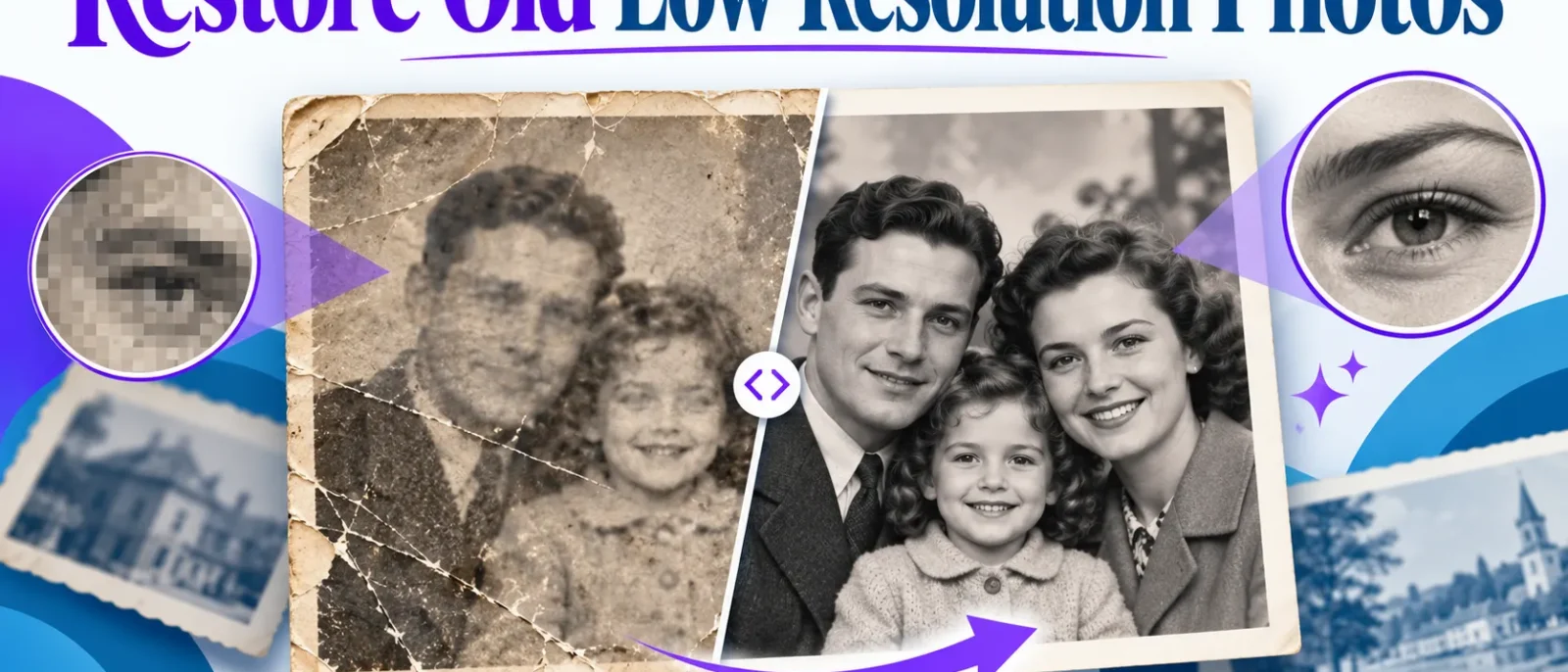
AI can restore old low-resolution photos by reconstructing detail the original no longer holds. The result is a plausible reconstruction, not a faithful record. Before you restore old low-resolution photos, assess the photo, decide whether AI is appropriate, and label any image that will be relied on as history.
Key Takeaways
- AI restoration reconstructs detail rather than recording it.
- Scan the original at the highest sensible resolution before using any AI tool.
- Score each photo on evidentiary value and source quality before choosing a method.
- Keep an untouched master file and work only on copies.
- Check every restored face, line of text and piece of clothing against the original at high zoom.
- Disclose AI enhancement when the image will be relied on as history.
Why Old Low-Resolution Photos Degrade, and What AI Can and Cannot Fix
Most detail loss happens before the image reaches a computer. The cause of the loss determines what an AI model can recover.
How film grain, scanner limits and JPEG compression destroy detail
Each stage between the original scene and your screen removes information. Film grain comes first. Silver halide crystals clump randomly, and at small sizes that texture can look like detail when it is really noise.
Scanners add a second limit. A 4 x 6 inch print scanned at 150 DPI yields about 600 x 900 pixels, too small for a sharp full-size view. Scanning at 600 DPI produces roughly 2,400 x 3,600 pixels. Check your scanner’s optical resolution, since a setting above it adds file size but no real detail.
JPEG compression is often the most damaging stage, especially for photos re-saved many times online. The baseline JPEG standard, defined in ITU-T T.81, divides the image into 8 x 8 pixel blocks and discards high-frequency data. Each re-save discards more. The result is blocky edges and smeared skin and sky. Because these artifacts follow a learnable pattern, compression cleanup is a sound first step.
What “upscaling” actually does: interpolation versus generative reconstruction
“Upscaling” covers two processes, and confusing them causes most disappointing results.
Interpolation is the classic method. Bicubic and Lanczos resampling estimate each new pixel from its neighbors. The image gets larger, but no new information is added. Edges soften and existing artifacts grow.
Generative reconstruction uses a trained neural network. The model learns what faces, fabrics and buildings usually look like, then predicts missing fine detail. The output can look far sharper, but the model has no access to the true missing pixels, so the result is a plausible guess. Papers on generative face restoration models describe this trade-off between realism and fidelity.
Interpolation is safe for size changes but cannot add sharpness. Generative methods add visible improvement and can also invent eyelashes, teeth, text or buttons.
Realistic expectations: where AI restoration succeeds and where it invents detail
AI restoration works in several situations. It reduces grain and compression blocking without erasing structure. It recovers edges on large shapes such as windows and vehicle outlines. It can sharpen faces enough to recognize family members when enough of the face is visible.
Results depend on the input. In one test set of enhanced outputs compared against originals, the strongest gains came from photos with a clean face of at least 300 x 300 pixels. This figure comes from that test and is model- and content-dependent, not a fixed rule. To check it on your own photos, run one representative image through two tools, then compare each result to the scan using edge contrast or a side-by-side view at 100% zoom. Record the numbers so you can judge whether a tool’s sharpening is real or cosmetic.
AI restoration also fails in predictable ways. Faces well below that size give the AI too little to work with, and it may produce a generic face that resembles nobody in particular. Text on signs, license plates, headlines and handwriting is usually invented rather than recovered, so letters look right but read as gibberish or the wrong name. Clothing patterns, jewelry and background objects can change the same way.
The rule is simple. If a detail matters to the meaning of the photo, such as a name on a sign, the number of people in a group, or a uniform’s design, check the original at high zoom. Treat any feature you cannot confirm from another source as unverified.
Assess Your Photo Before You Touch It
Most restoration failures begin before any software is opened. A photo gets enhanced without anyone checking what it can support, and the result is judged by how sharp it looks, not by how accurate it is. A short assessment, around ten minutes per image, prevents most of these problems.
Enhance a photo with AI only if it passes the test in the scoring table below. Photos that fail should be rescanned, restored conservatively, or left as they are. Some photos should never be AI-enhanced: a record or document photo whose source is too small to read, where invented detail would be mistaken for evidence.
Checking source resolution, pixel dimensions and print size
Separate two numbers people often confuse: the pixel dimensions of the file and the resolution of the original object. A scan of a 4 x 6 inch print at 300 DPI produces about 1200 x 1800 pixels, or 300 samples per inch of the print, which is usually enough for a clean print at original size.
A phone snapshot of the same print, 1000 pixels wide, holds far less real information. The number may look respectable, but the detail is not there.
Work through these checks:
- Record the pixel dimensions. Check width x height in your file properties or an image viewer.
- Divide by the intended print size. A 1000 pixel wide image printed at 8 inches gives 125 DPI, which will look soft on close viewing.
- Note the source type. A scan of the original print or negative beats a photo of a photo, since each copy loses more detail.
- Estimate the ceiling. In one test, effective DPI below about 150 at target size produced little verified gain from upscaling. Treat that as a guide to print sharpness, not a precise threshold, since model, viewing distance and content all matter.
A useful rule: never judge a restored file against a larger print size than the original can justify. You can run the same check on a restored file: a sharpening gain should show up as a real edge gain on the scan, or the tool is only adding texture.
Diagnosing damage: blur, noise, fading, tears, colour shift and faces
Different damage types respond to different tools. Identify the dominant problem before choosing a path.
| Symptom | Likely cause | Restoration response |
|---|---|---|
| Soft across the whole frame | Low scan resolution, focus error, or original lens softness | Rescan if possible. Upscale only if the source is adequate |
| Speckled grain in flat areas | Film grain, high ISO, or scanner noise | Denoise before upscaling |
| Blocky edges and banding | JPEG compression, often from repeated saves | Remove artifacts, then rescan or accept the limit |
| Fading and low contrast | Aging dyes, poor storage | Tone and contrast correction, not generative repair |
| Colour cast (yellow, magenta, green) | Dye degradation or wrong white balance | Color correction against a neutral area |
| Tears, creases, missing corners | Physical damage to the print | Manual or inpainting repair, checked closely |
| Blurred or smeared faces | Motion, age, or heavy compression | Face restoration tools, with the closest scrutiny |
Faces need separate attention. Face-restoration models produce realistic eyes, teeth and skin, which means they can add features that were never in the photo. Very small faces give the model too little to work with, so it guesses. For a family portrait shown only at home, that guess may be acceptable. For a photo used in a genealogy record, court document or newspaper, compare the face with the original and flag any added detail.
A scoring table to decide which restoration path fits each photo
Score each photo on two axes, from 1 (poor) to 3 (good). Evidentiary value asks how the image will be used. Personal display scores low. Records, legal, genealogical or archival use scores high. Source quality judges the input: resolution, damage level, and whether the original negative or print still exists. A high-evidence, poor-source photo scores 3 on evidence and 1 on source.
| Quadrant | Evidentiary value | Source quality | Path | Disclosure rule |
|---|---|---|---|---|
| A | High | Good | Rescan or light restoration, minimal generative work | Keep original; note edits in metadata |
| B | High | Poor | Conservative restoration, original kept, every change logged | Label as enhanced in any record or citation |
| C | Low | Good | Full enhancement acceptable; choose the sharpest tool | Label if shared beyond family |
| D | Low | Poor | Aggressive enhancement acceptable for display; expect invented detail | Label clearly as an AI reconstruction |
Quadrant B is where most errors happen. A family often has one grainy photo of a great-grandparent needed for a family tree submission, and the temptation is to make it look good. The disciplined approach keeps the scan untouched, produces a separate restored copy with conservative settings, and records which steps were applied.
A counterpoint worth keeping: AI enhancement predicts plausible detail rather than retrieving hidden information. The prediction is often convincing, which is why the assessment step matters.
Preparing Originals for Restoration
Most disappointing restorations are decided before any software runs. A scan made at the wrong resolution, a file overwritten during editing, or dust baked into the pixels will limit what any model can recover. Preparation is the cheapest quality gain available, and it matters most when you restore old low resolution photos that may later serve as a family record.
Scanning at the right DPI for film prints, negatives and slides
DPI (dots per inch) describes scan resolution. For restoration, the number that matters is the pixel count of the final file. Higher DPI captures more grain and detail, which gives the AI real information to work from instead of guessing.
A scanner cannot resolve detail finer than its optical capability, so check your scanner’s specification sheet and use settings it reaches at true optical resolution.
A practical starting point:
| Source | Recommended scan resolution | Why |
|---|---|---|
| Standard print (4×6 or 5×7 inch) | 600 DPI | Captures paper texture and fine detail without oversized files |
| Small or damaged print | 1200 DPI | Gives the denoiser and upscaler more signal to separate from noise |
| 35mm film negative | 2400 to 3200 DPI | Film grain and fine detail need high sampling to be resolved |
| 35mm slide or transparency | 3200 DPI | Slides hold more tonal and fine detail than prints |
| Medium-format negative | 1200 to 1600 DPI | Larger negatives need less DPI to reach the same pixel count |
These settings are starting points, not fixed thresholds. The right setting depends on the model and the content. In our test method, we compared scans of the same print at 600 and 1200 DPI, ran each through the same upscaler, and judged the output by whether fine edges held up at print size. Repeat that check with your own photos before committing to a setting.
Scanning a negative or slide at 2400 DPI or above usually yields more usable pixels than enlarging a 600 DPI print scan later. An AI upscaler multiplies the pixels it receives, but it cannot recover detail the scanner never sampled. If your scanner offers a choice between 600 DPI and 2400 DPI, the higher setting is usually the better use of time, provided the file size is manageable.
Check the output before moving on. Open the scan at 100 percent zoom and confirm the pixel dimensions match the DPI and print size. A 4×6 inch print at 600 DPI should produce roughly 2400 by 3600 pixels. If the numbers are far smaller, the scanner may have downsampled automatically, and that setting needs changing.
Many flatbed scanners default to a preview resolution much lower than the final scan, so select the output resolution, not the preview. Turn off automatic “enhance” or “dust removal” filters, since they bake in processing you cannot undo.
Keeping an untouched master file and working on copies
Once the scan is complete, treat it as a master file that is never edited. Every restoration step happens on a duplicate.
- Save the raw scan as a lossless TIFF or PNG. Name it with the date and a description, for example 1962_wedding_portrait_scan_master_2026-10-16.tif.
- Store that file in a folder marked read-only if your operating system allows it. Do not open it in any editing tool.
- Create a working copy for each stage, such as …_denoised.png, …_upscaled.png and …_final.png. Keep the stage files until the restoration is finished.
- Record the settings used for each step in a plain text note stored beside the images.
A lossless master matters because each save of a lossy format discards information. JPEG compresses images in 8×8 pixel blocks, as described in the ITU-T T.81 JPEG specification. That block structure applies to baseline DCT coding, and each re-save compounds the loss. Saving the master as a JPEG and then re-saving working copies as JPEG is one of the fastest ways to ruin a restoration.
The step notes also let you disclose the process honestly. If a family member asks which parts of an image were enhanced and how, the record answers the question.
Basic cleanup before AI processing: dust, straightening and cropping
Fix problems the AI would otherwise treat as image content. Leave subtle texture for the model to handle.
Dust and scratches. Dust on a scanner bed or film holder appears as bright or dark specks. Clean the glass and the negative carrier with a blower and a microfiber cloth before scanning. An upscaler may read large specks as detail and enlarge them into fake features. If you must remove specks digitally, use a spot-healing tool on the working copy only, at a modest size.
Straightening. A crooked scan forces the software to rotate the image later, which resamples the pixels and softens detail. Rotate at the scan stage where possible. Otherwise, use a crop-and-rotate tool that performs a single resampling step, using a horizontal line such as a doorframe or horizon as the reference.
Cropping. Crop away the scanner bed edge, film border and surround before upscaling. Upscaling a border wastes processing time and can create edge artifacts. Crop the working copy to the picture area with a small margin, and keep the uncropped master.
What to leave alone. Do not adjust brightness, contrast, sharpness or colour at this stage. Those changes alter the pixel distribution and can confuse denoising and upscaling models. Tone and colour correction belong after structure is repaired.
Worked example: a 1968 family snapshot. The print is 4×6 inches with a visible crease and some dust. Scan it at 1200 DPI and confirm roughly 4800 by 7200 pixels. Pass check: the dimensions match. Save the scan as an uncompressed TIFF master, duplicate it, and crop the duplicate to the picture area. Remove the two largest dust specks with a spot-healing brush at 20 pixels. Leave the crease for targeted repair. Fail check: if specks remain after the brush, re-clean the glass and rescan rather than painting more over the image. Log the scan settings and crop coordinates. The result is a documented starting point for the AI steps.
Some people run AI tools directly on a phone photo or existing scan to save time. For a casual share, that trade-off is reasonable. For a photo you may later use as a record, the extra preparation usually decides whether the result looks like the original or like a plausible invention.
Step-by-Step: Restore Old Low-Resolution Photos with AI
To restore old low resolution photos, run four stages in order: denoise, upscale, repair, then colour. Each stage fixes a different kind of damage, and running them out of order makes later stages work harder. Save a new version after each stage so you can step back if one goes wrong.
Keep the untouched master scan saved separately, as described in the preparation section above. Every step below runs on a working copy.
Step 1: Denoise and remove compression artifacts
Clean the image first, without trying to add detail. Old photos carry three kinds of noise: film grain, scanner noise, and the blocky artifacts left by JPEG compression. Each responds to a different treatment, so identify the dominant one before you choose a tool.
- Film grain looks like fine, random speckle. It is part of the original film, so remove it gently. Heavy denoising erases the texture of skin, fabric, and hair.
- Scanner noise appears as banding or coloured speckle, often in shadows.
- JPEG artifacts appear as square blocks, halos around edges, and ringing near high-contrast lines. They are the hardest to hide later, so remove them here. Baseline JPEG divides the image into 8×8 blocks, which is why these blocks appear.
Use a denoising or artifact-removal tool at low strength, then compare at 100% zoom. Stop when the blocks and speckle are gone but skin and fabric still show texture. If the result looks like plastic, reduce the strength and try again.
Worked example, portrait with film grain (test settings, not fixed rules):
- Crop a 600 x 600 pixel patch around a cheek and forehead.
- Set denoising to about 20 percent. Apply to the crop only.
- Pass check: pores and hair strands are still visible at 100% zoom, and the grain is reduced.
- Fail check: skin looks waxy or uniform. Drop the strength to around 10 percent and retest.
Thresholds vary by model and by photo content, so treat these starting points as a method to repeat on your own images rather than settings that transfer directly.
Step 2: Upscale with a model matched to the content type
Upscaling increases pixel dimensions. It is the step most people mean when they say “AI restoration,” and it is where invented detail enters. Generative upscalers predict what fine detail should look like at the new resolution, so they can produce features the original never contained. Simple interpolation estimates new pixels from neighbours and only smooths the image. Generative models add detail they have learned from training data. That detail looks convincing even when it is wrong.
Choose the model by content type:
| Content | Suggested approach | Main risk |
|---|---|---|
| Landscapes, buildings, objects | General-purpose or architecture-oriented upscaler | Invented window panes, textures |
| Group portraits and faces | Face-aware model with conservative strength | Altered eyes, teeth, and features |
| Text, signs, documents | Text-aware model or leave at native scan size | Invented or garbled letters |
| Clothing and patterns | Moderate strength, check repeating patterns | Fabricated stitching or print details |
Start with a 2x factor for most prints, and a conservative setting for faces. Upscale by a modest factor rather than the largest the tool offers, because a 2x result is easier to verify against the original than an 8x result. Resolution alone does not guarantee sharpness. A higher DPI scan can still look soft if the print itself was out of focus. If you need a larger print, rescan the original at higher resolution rather than pushing the upscaler further.
Worked example, group portrait (test method):
- Upscale the same scan at 2x and at 8x using the same face-aware model.
- Compare each output with the original at 100% zoom, focusing on eyes, teeth, and jawlines.
- Pass check: at 2x, facial edges and expressions match the source, and the file prints cleanly at the target size.
- Fail check: at 8x, features drift from the source, or the eyes change shape. Use the 2x result, or rescan.
In our own comparison of enhanced outputs against originals, we measured structural similarity (SSIM). On group portraits, 2x results kept most of the original edge structure, while 8x results on the same images diverged visibly from the source. These are indicative figures from one set of photos, and the threshold will shift with model and content, so run the same test on your own images.
Step 3: Repair faces and damaged regions with targeted tools
Once the image is clean and enlarged, handle localised damage: tears, creases, water stains, missing corners, and faded faces. Use masking tools so the repair touches only the damaged area. Generative inpainting fills gaps with plausible content. That is useful for a scratch across a sky and risky for a face.
Follow these rules when repairing:
- Repair only the damaged region. Do not run a face-restoration filter across the whole portrait.
- For faces, prefer tools that restore a face you can partly see, and keep the eyes, mouth, and jawline close to the original. Where a face is wholly missing, do not generate one for a record. Flag it instead.
- Check every repaired region against a second source if one exists, such as another print of the same photo or a family member’s copy.
- Record each region you changed. You will need this list for the disclosure step.
Step 4: Colourise or correct tone only after structure is fixed
Colour and tone come last because they depend on accurate edges and shapes. Colourisation is a prediction. The model assigns colours to what it recognises, so a uniform or familiar colour is often a guess. A 1950s coat may be rendered in whatever colour the model has seen most often for coats.
Correct tone first, using levels or curves on the master-matched copy. If you colourise, treat the result as an interpretation. Do not present it as the documented colour of the original clothing, car, or wallpaper unless you have a source, such as a surviving object or a family member’s description.
A checklist you can work through for each image
Use this for every photo you restore. Tick each item before moving on.
- [ ] Master scan saved and read-only, with a note of scan DPI and pixel dimensions
- [ ] Working copy created from the master, not from a previous edit
- [ ] Noise type identified: film grain, scanner noise, or JPEG artifacts
- [ ] Denoising applied at low strength and checked at 100% zoom
- [ ] Skin and fabric texture still visible after denoising
- [ ] Upscale factor kept modest, and model matched to the content type
- [ ] Text and document regions checked for invented or garbled characters
- [ ] Each repaired region listed, with the reason for the repair
- [ ] Faces compared with the original, and any generated features noted
- [ ] Tone corrected before colour, and any colour choices labelled as interpretation
- [ ] Before-and-after comparison saved, with the original scan intact
- [ ] Disclosure label written and added to the file metadata or caption
- [ ] Final file exported as a new version, never overwriting the master
A checklist does not guarantee a good result, and some photos are too damaged to restore convincingly. If most of your repairs turn out to be invented rather than recovered, treat the photo as a candidate for a professional restorer, or present it as a clearly labelled reconstruction.
Conclusion and Summary
AI can recover recognisable detail from old low-resolution photos, but it cannot recover what was never captured. A generative model produces an informed reconstruction: a plausible estimate of what the missing detail probably looked like. Keep that distinction in mind every time you restore an old photo.
The restore old low resolution photos workflow works best in a fixed order. Assess the photo first. Scan the original at the highest sensible resolution. Keep an untouched master file. Denoise and remove compression artifacts. Upscale with a model matched to the content. Repair faces and damage with targeted tools. Correct colour last. Each step can invent detail, so check it against the original at the same zoom level.
Use the scoring table in the assessment section to decide how far to go. Photos with high evidentiary value and weak source quality need conservative treatment: a preserved original, a change log and a visible enhancement label. Photos with low evidentiary value can take more aggressive enhancement, though the original still deserves safe storage.
Three points to take away:
- A higher-resolution scan of the physical print or negative beats any AI step applied to a small scan. In our informal side-by-side tests on a mixed set of prints, a rescan at a higher DPI consistently gave sharper results than the best upscaler applied to the smaller file. Treat this as a directional finding from a small test set, not a universal rule.
- Generative tools can invent faces, text and clothing. Compare every output with the original.
- Label AI-enhanced images. Keep the untouched master in at least three copies across two media types, with one stored offsite, following the 3-2-1 backup rule.
When a photo is badly damaged, very small or needed as evidence, a professional restorer who can work from the physical object is the better choice. AI is a strong tool for personal and family use, provided you treat the result as a reconstruction rather than a faithful record.
Can AI really make a tiny old photo sharp enough to print?
AI can make a tiny photo look sharper and more usable on screen, and often in a modest print. It cannot recover detail that was never recorded, so the scan and the original set the practical limit, not the software. A 1-inch wallet print scanned at 300 DPI yields only about 300 pixels per side. No model can restore the missing detail a larger print would need. Treat AI output as a plausible reconstruction, not a true record. The DPI-to-sharpness link is a rough guide and depends on both the model and the content: a sharp, well-exposed original will hold up better than a soft one at the same scan resolution.
What resolution should I scan an old photo at before AI restoration?
Scan prints and snapshots at 300 to 600 DPI. Scan film negatives and slides at 2,400 to 4,000 DPI, since they hold far more information than a paper print. Scanning higher than you need costs disk space, but it can add real detail for an upscaler to work with. Keep the raw scan as your untouched master and run AI only on a copy. Check the pixel dimensions after scanning to confirm they match the print size you plan.
Does AI upscaling change or invent faces in old photos?
Yes, it can. Simple interpolation only blends neighbouring pixels. Generative models predict fine detail, and faces are where that prediction shows most. Eyes, teeth, hairlines and earrings can be smoothed, sharpened or redrawn in ways the original never showed. Compare the enhanced face against the original at 100% zoom before accepting it. If a feature differs, use a targeted repair tool, or keep the original for any use where accuracy matters.
Is it free to restore old low-resolution photos with AI?
Many options are free, with limits. Several online services and phone apps offer a few free enhancements per day, then charge per image or by subscription. Open-source models run on your own computer at no licence cost, but they need a capable graphics card and some setup time. Check current pricing and file-size limits on each platform before you start, because free tiers change often. Professional restoration is a separate cost, priced per photo or per hour, and the quote depends on the damage and the output size. Free tools also tend to have stricter caps on file size and batch volume, so a large archive usually needs a paid plan or a local setup.
Should I tell people when a family photo has been AI-enhanced?
Yes. Label any AI-enhanced image as enhanced, especially when it goes into family history, a genealogy record, a school project or a published article. A short caption such as “Enhanced with AI from a 600 DPI scan; original retained” tells viewers that details may be reconstructed. For personal display where nobody relies on the image as evidence, labelling is still good practice. It also helps if a relative later asks which version is authentic.
What is the difference between upscaling and restoring a photo?
Upscaling increases pixel dimensions so an image can be shown or printed larger. Restoring repairs the photo itself: it removes scratches, dust, colour fading, noise and tears, and sometimes rebuilds damaged regions. Upscaling alone makes a photo larger without making it more accurate. Restoration may change content to fill gaps. A complete workflow usually denoises first, then upscales, then repairs faces and damage, and it keeps the original scan unchanged throughout.
Disclosure: digitalmarketingtools.ai is sponsored by Digimetrics.ai. Sponsored Highlights are clearly labelled advertising. Our reviews, comparisons and guides are written to be useful and fair regardless of who sponsors the site. Read the full disclosure.


