
How to Choose an Upscaler for Photos vs Illustrations: The Best Upscaler for Photos Depends on What You’re Scaling
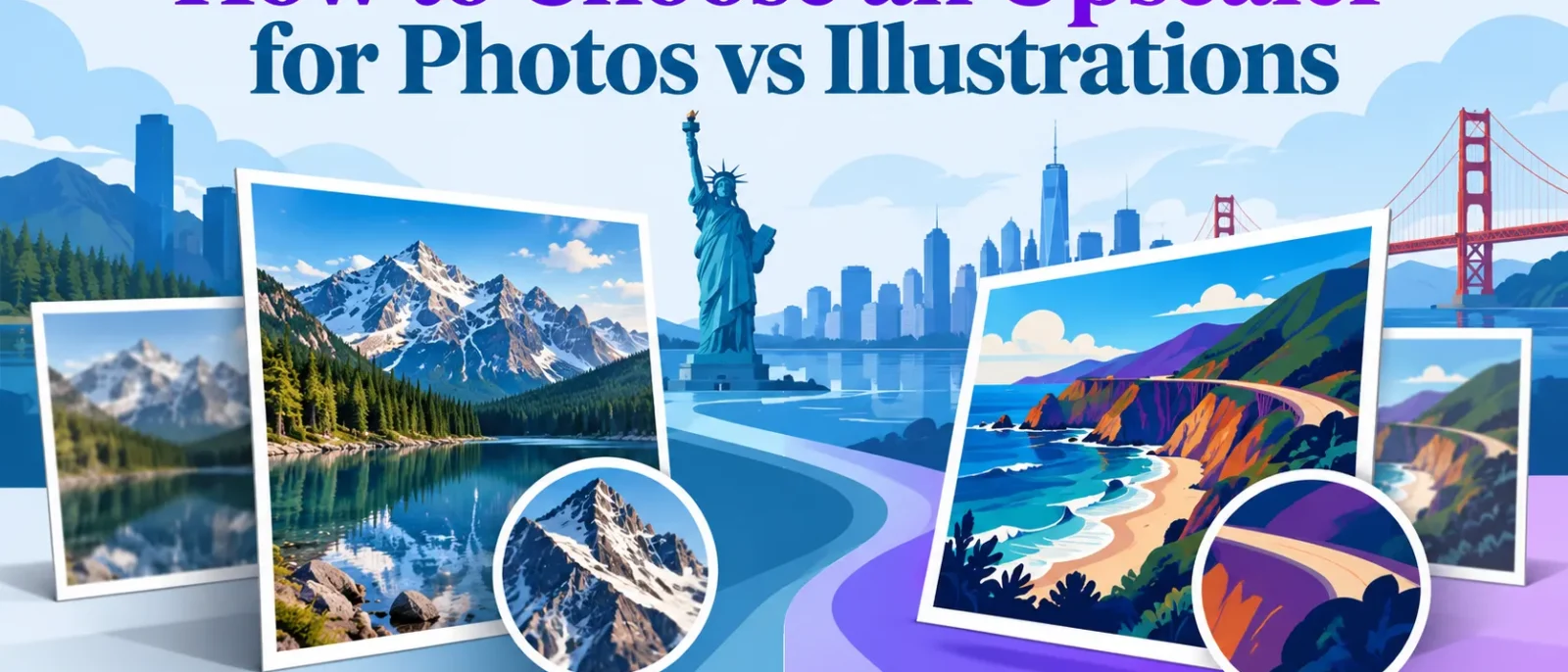
The best upscaler for photos depends on what you are scaling. Photos and illustrations respond to different algorithms, so a tool that restores a camera portrait well can smear the thin outlines of flat-colour artwork. Choose by content type first, then by output size and budget.
Our picks by content type
- Photos, free: a free tier that accepts your file size and pixel count, tested at 100% zoom.
- Photos, paid: Topaz Gigapixel, which advertises up to 16x scaling.
- Illustrations, free: a tool that keeps hard edges and flat fills on your test crop.
- Illustrations, paid: a model with a dedicated line-art or flat-colour setting, checked for halos.
Key Takeaways
- Pick by content type first. Photos and illustrations need different models. A tool strong on faces and textures can smear flat colour and line work.
- Treat the maximum scale factor as a ceiling. The real question is the output size your destination needs.
- Check free-tier limits before committing. Free plans may cap file size, image count and resolution, and some show ads.
- Test at 100% zoom. Check edges, halos and text before publishing or printing.
- Weigh privacy for sensitive images. Confirm how an online tool stores and uses uploaded files.
- Use a shortlist, not a single winner. Score candidates against your dominant content type, cost and batch needs.
Table of Contents
- Why Photos and Illustrations Need Different Upscalers
- What an AI Image Upscaler Actually Does
- The Upscale Process, Step by Step
- Choosing the Best Upscaler for Photos
- Choosing an Upscaler for Illustrations and Line Art
- Matching the Upscaler to Your Use Case
- Conclusion and Summary
Why Photos and Illustrations Need Different Upscalers
A photo and an illustration look nothing alike to an upscaler, and that gap explains most disappointing results. Photos contain continuous tones, sensor noise and fine texture. Illustrations contain flat fills, crisp contour lines and sharp colour boundaries. Each asks the software to reconstruct different information, so a model that wins on one can damage the other. Results can also remain pending until both source types are tested at maximum zoom.
How a photo’s detail differs from an illustration’s edges
In a photograph, most detail lives in texture and gradation. The upscaler must invent plausible micro-contrast, the subtle variation between nearby tones, without turning grain into plastic.
An illustration’s value comes from clean edges and uniform colour areas. If the software softens those edges, line work wobbles, halos appear along outlines and small type melts into its background. Checking edges at 100% zoom is the fastest way to catch this, and a persistent wobble in line work usually signals a poor model choice.
Why a model trained on faces can smear line art
Most upscaling models learn from large sets of photographs, many of them portraits. Topaz Labs describes its AI upscaler as trained on millions of high-resolution images. This is the vendor’s own claim, and we have not independently verified it. It does not say what share were faces or illustrations, so treat it as a claim to test.
A model that has learned to reconstruct skin and hair may behave differently on flat art. It can add faint mottling to solid fills. It may round off sharp corners. It may blur thin strokes. A tool that excels on photographs can therefore leave an illustration looking smeared, and some models cloud solid fills with faint noise.
What “good” looks like for each image type
For photos, a good upscale adds believable fine detail without grain or waxy smoothing. Skin keeps some pore texture. Edges stay sharp without haloes. Highlights do not clip.
For illustrations, a good upscale keeps edges crisp, fills flat and line weight unchanged. Small lettering stays legible and colour boundaries gain no glow. Compare source and output side by side at 100% to see whether any shape has gained or lost something it should not have. A best image result depends on running this check on each source type rather than trusting one general setting, and the best ai image upscaler for one type may not be the best for the other.
What an AI Image Upscaler Actually Does
Basic resizing averages neighboring pixels, so enlarged images look soft. An AI upscaler instead predicts the detail that should exist at the higher resolution. It uses patterns learned during training, then draws edges, textures and gradients that plausibly fit the source. The best image results come from inputs that resemble the training material.
How AI image upscaling reconstructs detail
The model compares patches of the small image against patterns learned from large sets of high-resolution examples. Topaz Labs describes its training data as millions of high-resolution images, a vendor claim we have not independently verified. A model trained mostly on camera photographs predicts hair, skin and foliage well. It may invent unnatural texture on a flat logo.
The result is a prediction, not a recovery of lost information. Quality depends on how closely the input resembles the training material.
Upscale factors and output formats explained
The upscale factor multiplies each side of the image. A 2x factor turns a 1,000 by 1,000 pixel file into 2,000 by 2,000, four times the total pixels. One listed tool offers 2x, 4x and 6x scaling. Another advertises up to 16x scaling.
A maximum is a ceiling, not a target. Decide the output size from where the image will appear, then choose the smallest factor that reaches it. Larger factors invite more invented detail. Each upscale of a given duration of processing time can add cost, so pick the smallest factor that meets the need.
PNG preserves sharp edges and suits illustrations. JPEG adds artifacts around line art, so save illustrations as PNG where possible.
Denoise, sharpen, unblur, face and lighting enhancement
Denoise removes sensor grain but can erase fine texture if pushed too far. Sharpen and unblur restore edges lost to shake or focus error. Face and lighting enhancement adjust skin, eyes, exposure and contrast.
Switch these off at first. Stacked corrections quickly produce plastic-looking skin or haloed outlines. Enable one type of correction at a time, compare at 100% zoom, and keep only the changes you can justify. Results that remain pending review should not be published until checked.
The Upscale Process, Step by Step
Most bad upscales come from skipped preparation rather than a weak tool. Follow this order when working through a batch, whether the source is a camera photo or a flat-colour illustration.
Preparing the source file before you upscale
Open the file at 100% and look for JPEG blocking, gradient banding, and any text or logos that must stay sharp. Crop out borders, scanner edges and dust first, so the model does not rebuild detail you do not want. Start from the best original image you have, since no upscaler can recover detail that was never captured.
Check the file against the tool’s limits. One listed free plan takes one image at a time, up to 6MB and 6MP, according to ScreenSnap. A 4000 × 3000 camera photo exceeds 6MP, so downscale it or move to a paid tier. Check the upload size and file type before you start the job.
Decide the output size before you touch the tool. A web-shop thumbnail may need only 1500 pixels on the long edge. A 12-inch print at 300 dpi needs 3600 pixels. Work backwards from the destination.
Running the upscale and choosing settings
Pick the scale factor that reaches your target size, not the largest on offer. Topaz Gigapixel advertises up to 16x, but a 2x or 4x pass is usually enough for a web image. Note the maximum output size the tool allows before you commit.
Match the model to the content. Photo models expect faces, skin texture and natural noise. Illustrations need settings that preserve hard edges and flat fills. Test each option on a crop before committing the batch. Compare the best AI image result against the original on the same crop.
Keep denoise and sharpening low on the first pass. Heavy sharpening on flat artwork produces halos along every outline.
For batches, check the concurrency limit, meaning how many images the tool processes at once. One tool in the same review processes up to 50 images at once, which saves real time on a 200-image catalog. Confirm how outputs are named and whether originals are kept. Note the processing duration per image so you can estimate the full batch time.
Checking the result at 100% zoom
A fit-to-screen preview hides most defects. Zoom to 100% and inspect faces or fine textures in photos. For illustrations, inspect outline edges and small text. Also check the boundary between subject and background.
For each file, run this checklist:
- Edges: look for halos, double lines or stair-stepping, the jagged staircase effect along diagonal lines.
- Text and logos: confirm letters are legible and not reshaped.
- Color: compare against the original for hue shifts in skin tones and flat fills.
- Noise: check plain areas for smeared or waxy patches.
- Repeats: look for duplicated patterns such as fabric weave or foliage.
If a file fails two or more checks, adjust the model or settings and re-run that file alone, not the whole batch. Keep a short log of what worked for each content type. Review the saved output once more in its final format, such as a web or print file, before you publish.
Choosing the Best Upscaler for Photos
No single tool wins for every library. The best upscaler for photos is the one that fits your source files, output size and budget. Score candidates against the matrix below before committing to a paid plan.
Criteria that matter for photographic detail
Score each candidate from 1 to 5 on five criteria: photo fidelity (faces, skin, fabric and foliage), illustration fidelity (flat color and line work), maximum scale factor, batch capacity and cost per image. If most of your files are camera images, weight photo fidelity double. Check that each tool’s output stays consistent across a pending batch rather than only the best single result.
Treat the maximum scale factor as a ceiling, not a target. Topaz Gigapixel advertises upscaling up to 16x pixels, yet most web images need no more than 2x. Work backwards from the destination. A 1200-pixel product image needs little scaling. A 300 dpi A3 print from a phone snapshot may need 4x or more. Pick the factor that reaches your target size, then check that fidelity holds at that factor.
Free AI image upscaler tools: what the free tier really gives you
Free tiers suit testing more than production. One widely cited comparison, ScreenSnap’s review of AI upscalers, notes a free plan that shows ads and processes one image at a time, up to 6MB and 6MP. A 6MP ceiling excludes many modern phone originals, so check the size of your largest file first. In practice, the pixel cap is often the real decision factor, more than any feature list.
Run your three hardest photos through the free tier. If faces keep their texture at the scale you need, the free tool may cover occasional jobs. Note the duration of each test run, since slow processing on a free plan can offset its cost savings. A persistent slowdown on a queued job is a sign to move to a paid plan.
Premium AI image upscaler tools and when they pay off
Paid plans earn their cost when you process volume or need higher factors. The same review lists a 7-day free trial, then a one-time license from 99 EUR (desktop only) or 129 EUR (all platforms). Those are reviewer-reported figures in euros, and they may have changed. Convert them and confirm current US dollar pricing on the vendor’s pricing page before you budget.
For a US seller, buy the paid plan if it saves more labor than it costs. Batch capacity drives that calculation, because queued jobs turn hours of manual work into a single run. Compare the output of your original image against the upscaled result at the same zoom before deciding. Adding a short video walkthrough of your own before-and-after comparison can make that review faster for your team.
Upscaler comparison table
| Criterion | What to check | Weight for photo-heavy libraries |
|---|---|---|
| Photo fidelity | Skin, hair and texture at 100% zoom | High (x2) |
| Illustration fidelity | Edges and flat color | Low |
| Max scale factor | Does it reach your output size? | Medium |
| Batch capacity | Images per queue | Medium |
| Cost per image | One-time vs subscription | Medium |
Score each tool 1 to 5 on every row, multiply by the weight, and rank the totals. The top two become your trial shortlist. Upload a sample from your local archive to each, not just the vendor’s demo files. Keep the whole scoring workflow in one shared sheet so every reviewer scores the same way.
Choosing an Upscaler for Illustrations and Line Art
Illustrations break the assumptions most upscalers are built on. A camera photograph has soft gradients, skin texture and sensor noise, so the upscaler invents plausible detail between those values. A flat-color illustration has almost none of that. It has hard edges, uniform fills and a limited palette. The same reconstruction can make a clean line wobble or add a faint halo around a shape. For artwork, the question is whether a tool leaves your edges and fills alone, not how much detail it can invent.
Flat color, vector-like art and clean edges
For flat-color and vector-style work, judge edge behavior first. Upscale a sample at the size you need, then inspect it at 100% zoom. Check whether straight lines stay straight, whether color boundaries stay crisp without a fringe, and whether small text or fine hatching survives. Tools tuned for photographs often add texture to flat areas, which reads as grain on a solid fill. In that case, a lower scale factor or a dedicated illustration mode usually gives a cleaner result.
Work out the pixel dimensions your destination needs, then choose the smallest scale factor that reaches them. A stated maximum such as 8x is a ceiling, not a target.
Painted and textured illustrations
Painted artwork sits between the two extremes. Brushwork and paper grain carry meaning, and aggressive denoising can erase them. Reduce noise or compression artifacts only as far as needed, and keep sharpening modest, since it exaggerates brush edges. If a painted face or background wash looks plasticky, the tool is applying photo-trained smoothing to content it should preserve.
Vendor claims about training data tell you little about this. Topaz Labs says its AI upscaler has been trained on millions of high-resolution images. This is the vendor’s own claim, which we have not independently verified, and it says nothing about how the model handles your medium. Test on your own work.
Tips for better upscaling results on artwork
- Start from the largest clean original you have. Upscaling a compressed JPEG amplifies compression blocks.
- Run a short test on a 300 by 300 pixel crop containing a line, a text element and a color edge.
- Choose the lowest scale factor that meets your output size.
- Turn off or minimize denoise and sharpen on flat art, then compare with the default.
- Inspect edges, halos, text and fine lines at 100% zoom before exporting.
- For batches of product illustrations, process 10 to 20 sample files first, then check the rest for consistency. Many tools accept batches of up to 20 images at once.
- Keep the original file, so a small failed detail can be retouched rather than reprocessing the whole batch.
Matching the Upscaler to Your Use Case
The content-type split matters most, but the destination matters almost as much. The same 2x upscale can be overkill for an Instagram post and inadequate for a poster. Work out where the image is going, then check whether the tool can produce that output size without wasting credits or breaking the file. Settle on the output size first, then confirm the tool can deliver it within your usual processing duration.
Old photos, photo restoration and colorization
Family photographs are usually small, soft and faded, so the work is mostly repair. Restoration tools combine denoising, sharpening and face enhancement, and are often more useful than a pure enlargement tool. Expect to upscale only 2x or 4x, since the source file often has little real detail to recover. Run colorization as a second pass after restoration, and keep the original scan untouched by working on a copy.
Product images and e-commerce listings
For a small online shop, the goal is a sharp, accurate product photo that loads quickly. Shoot at the camera’s native resolution and upscale only if the marketplace or theme requires a larger image. Check the platform’s minimum dimensions first, because a 2x upscale that adds nothing visible is wasted time. Inspect fabric weave, label text and reflections at 100% zoom. Avoid tools that smooth textures into plastic, since such images can misrepresent the item. Listings that remain pending review often trace back to image quality, so verify each file before upload.
Social media and web display
Social platforms recompress uploads, so most added detail is discarded anyway. A moderate upscale that gives clean edges at the displayed size is enough. Aim for the largest dimension the platform actually shows, not the largest the tool allows. Illustrations and graphics usually suit a tool that preserves flat color and crisp outlines better than one tuned for camera detail. Batch-process a local folder of graphics with an image enhancement tool, and check the result on the platform’s own website preview before publishing.
Print output and large-format work
Print is where the maximum scale factor becomes a real constraint. Calculate the required pixel dimensions from the print size and target resolution, then choose the smallest upscale that reaches it. For example, a 16 by 20 inch print at 300 ppi needs 4,800 by 6,000 pixels. A 4x upscale turns a 1000px image into 4000px, so a 1,200 by 1,500 pixel photo would fall short of that target at 4x. Proof a crop at print scale before committing, since artifacts invisible on screen can show up in print. Free tiers rarely suit this work because of their size caps, so budget for a paid plan if the print run matters. Compare outputs from Adobe Photoshop’s Super Resolution against a dedicated tool such as Let’s Enhance before choosing. The best results come from testing the tool on your own file before the full run, and persistent artifacts in a test crop are a reason to switch tools.
Conclusion and Summary
The right upscaler depends on what you are scaling. Photographs reward models that rebuild skin, fabric and natural gradients, while illustrations reward tools that keep edges clean and flat color flat. One universal winner usually means weaker results on the content type you care less about. Adobe tools and the “Let’s Enhance” service both handle photographs well, but a shortlist should be tested on your own files, including any video frames you plan to scale.
Score each candidate from 1 to 5 on photo fidelity, illustration fidelity, output size, batch capacity and cost per image, weighting the criteria that match your library. Check results at 100% zoom before committing, and treat the stated maximum scale factor as a ceiling, not a target. Work out the pixel dimensions your destination needs first, since a pending project often has a fixed final size.
Is one upscaler the best for both photos and illustrations?
No. Photographs and illustrations respond to different algorithms, so a tool that handles faces well can smear flat color, line work and text. If most of your library is camera images, weight photo fidelity. If it is artwork, weight line-art fidelity. Then test your own files on the shortlist, and run a sample batch through your normal cloud or desktop workflow to see how each tool performs over the full duration of a job.
What upscale factor should I choose for print?
Work backwards from the physical size and dpi you need. Multiply the print width in inches by 300 for a standard print target, then compare that to your pixel dimensions. Stated maximums such as the 16x Topaz Gigapixel offers are ceilings. Most jobs need 2x or 4x.
Do free AI image upscalers add watermarks or limits?
Usually they add limits rather than watermarks. The ScreenSnap review of free tiers notes one free plan that shows ads and processes one image at a time, up to 6MB and 6MP. Check file-size and megapixel caps on the provider’s website before you start, as they can block large scans.
Will upscaling fix a blurry or low-quality photo?
It improves apparent sharpness but cannot recover detail the camera never captured. An AI model predicts plausible detail, so heavy blur may produce invented texture. For mildly soft images, denoise and sharpen before upscaling. For badly blurred originals, reshooting is often better.
Is it safe to upload private photos to an online upscaler?
Read the provider’s privacy policy before uploading personal or client images. Check how long files are stored, whether they train models, and whether you can delete them. For sensitive photos, a desktop tool that runs locally avoids sending files to a third party.
Can an AI upscaler restore and colorize old photographs?
Some tools combine upscaling with face enhancement and color correction, which helps with old prints. Color is an estimate, not a record of the original. Scan the print at the highest practical resolution, upscale, and keep the untouched scan as your master copy.
Disclosure: digitalmarketingtools.ai is sponsored by Digimetrics.ai. Sponsored Highlights are clearly labelled advertising. Our reviews, comparisons and guides are written to be useful and fair regardless of who sponsors the site. Read the full disclosure.


